

Rescuing photos from your old computer: that's probably exactly why you're here. Your old computer is getting slow, or you're moving house or clearing out. Somewhere on that drive are the family photos you don't want to lose. This guide walks you through the whole path, from "which drive is inside" to "the photos are safely on your new computer." At every step along the way there's a link to a more detailed follow-up article. And you can do this yourself, step by step. Feel free to ask for help if you'd rather have it.
First things first: which drive is in your old computer?
Before you read on, it helps to know what type of drive you're dealing with. That determines which enclosure you'll need later.
- Flat and compact, usually from a laptop? Then you have a 2.5-inch drive.
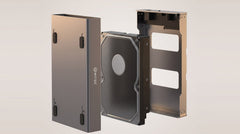
- Larger and heavier, usually from a desktop PC? Then you have a 3.5-inch drive.
That drive, by the way, is one of two types. A hard disk drive (HDD) has spinning parts inside. An SSD has no moving parts and is therefore quieter. It makes no difference to which enclosure you need though: both types fit the same enclosures.
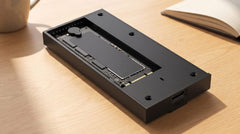
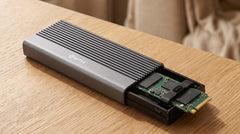
Does your laptop have a very thin, new design? Then it sometimes has a narrow circuit board instead of a regular drive: that's called an M.2 SSD. Not sure if that's the case for you? NVMe vs SATA M.2 SSD: what's the difference (and what do you need)? explains how to recognize it.
Would you rather work through the full three-step selection guide (size, connection, and speed, including the M.2 scenario)? Start with Which enclosure do I need for my old hard drive?
Does your old computer still work, or has it stopped working?
Before we get to the physical steps, this comes first, because it's where most of the worry sits.
Computer still works, but slowly, or you're moving house or clearing out
Good news: you don't need to install or delete anything. You'll simply be removing the drive.
Computer no longer starts up
That's usually not a problem either. As long as the drive itself isn't broken, you can simply remove it and read it out through an enclosure on your new computer. That also works if the rest of the old computer no longer functions. Not sure whether your drive still works, even before you buy an enclosure (for example because you heard a clicking or grinding noise)? "How do I know if my old hard drive still works, before I buy an enclosure?" walks you calmly through the checks, including what that kind of noise does and doesn't mean. You can do that without having to order anything.
How to remove the drive
A laptop usually has a small panel on the underside, and a desktop PC has one on the side. You loosen a few screws and disconnect the cable or cables: that's really all there is to it.
Want the exact, photographed step-by-step plan, including what to do if you're unsure about your specific model? "Transferring files to your new computer: the simple way without the cloud" walks you through that step by step.
Which Switss enclosure fits your drive
Prices and specifications below were checked live on switss.nl on 24 July 2026. Do you already know which size you have from above? Here's a quick summary of exactly what those two options offer.
| Suitable for | Max. speed | Max. capacity | Power | Price | |
|---|---|---|---|---|---|
| Switss 2.5" HDD/SSD Enclosure | A laptop drive (2.5-inch HDD or SSD) | Up to 450 MB/s with an SSD, 100-180 MB/s with an HDD | Up to 4 TB | Via the USB cable (no separate power adapter in the box) | €12,49 |
| Switss 3.5"/2.5" HDD/SSD Enclosure | A desktop drive (3.5-inch), or if you want to be able to use both sizes | Connection up to 5 Gbps; actual transfer: reading approx. 400 MB/s, writing approx. 300 MB/s with an SSD | Up to 20 TB | Included power adapter (3.5-inch); via USB cable (2.5-inch) | €29,99 |
Note the two units in the 3.5"/2.5" combo: the 5 Gbps is the speed of the cable connection itself. The MB/s figures are how fast your files actually move across it. Those are two different things, not synonyms of each other.
Want to see the two enclosures compared in more detail, with colors and exactly what's in the box? "Hard drive enclosure: 2.5-inch or 3.5-inch, which size do you need?" lays them out side by side for you.
How to connect the enclosure and view your photos
Place your drive in the enclosure and connect the included cable to your computer. If you have a 3.5-inch drive, also connect the included power adapter. Wait a few seconds. On Windows the drive then appears in File Explorer, on macOS on your desktop and in Finder, exactly like a USB stick does.
Important to know: connecting it doesn't erase anything. Do you get a pop-up asking to "initialize" the drive? Click Cancel if there are still files on it that you need. Initializing wipes the entire drive, and is only meant for a new, empty drive.
Doesn't the drive appear automatically, or do you want the full explanation (including what to do if you connect a Windows drive to a Mac)? "Reading an old hard drive: how to view the files on a loose HDD or SSD" walks you through that completely.
Securing your files on your new computer
Once the drive is readable, copy the important folders (Documents, Pictures, Videos) straight to your new computer immediately. An old drive that's spinning up again for the first time after years of sitting idle is not the place to leave your only copy.
At the speeds above, a folder with a few thousand photos is usually done in a matter of minutes. Want the complete step-by-step plan again, from removing the drive to copying the files? "Transferring files to your new computer: the simple way without the cloud" covers that entire process in detail.
Trust and warranty
Every Switss enclosure comes with a 2-year manufacturer's warranty, with Dutch customer service. If you have second thoughts after buying, you have 30 days to return it.
One honest nuance here, as with almost any product warranty: it covers the enclosure itself, not a drive you put in it yourself. That also applies if that drive was already damaged before you started. Not sure whether your old drive still works? Read "How do I know if my old hard drive still works, before I buy an enclosure?" first. That can save you a purchase that turns out not to be necessary after all.
Frequently asked questions
How do I get to the photos on my old computer?
Remove the drive from the old computer and place it in an external enclosure that matches the size (2.5-inch or 3.5-inch). Then connect that to your new computer. The drive then simply appears as an external drive, with all your photos and files on it.
My old computer no longer starts up: can I still rescue my photos?
In most cases, yes. As long as the drive itself isn't broken, you can still simply remove it and read it out through an enclosure on your new computer. That also works if the rest of the computer no longer functions. Do you hear a clicking or grinding noise from a hard drive? Then there may be a mechanical problem. Consider a specialized data recovery service (a company that specializes in retrieving files) rather than continuing to try it yourself. Not sure whether that applies to your drive? "How do I know if my old hard drive still works, before I buy an enclosure?" walks you calmly through the checks.
Is it difficult to remove the hard drive from my old computer?
No. A laptop usually has a small panel on the underside, and a desktop PC has one on the side. You loosen a few screws and disconnect the cable or cables: an ordinary screwdriver is enough.
Will I accidentally erase my photos when I connect the drive to my new computer?
No, not automatically. The drive only gets wiped if you deliberately choose "initialize drive" in a pop-up. Simply connecting and viewing a drive with existing files on it is safe.
Which enclosure do I need for my old computer?
For a laptop drive (2.5-inch), the Switss 2.5" HDD/SSD Enclosure fits, €12,49. For a desktop drive (3.5-inch), or if you want to be able to use both sizes, the Switss 3.5"/2.5" HDD/SSD Enclosure fits, €29,99. Both prices checked on 24 July 2026.
How much warranty do I get on the enclosure?
A 2-year manufacturer's warranty, with Dutch customer service, plus 30 days to return it.
Next step
Do you now know what type of drive your old computer has? Check the specifications and current price. For a laptop drive: Switss 2.5" HDD/SSD Enclosure (€12,49, checked 24-07-2026). For a desktop drive, or if you want to be able to use both sizes: Switss 3.5"/2.5" HDD/SSD Enclosure (€29,99, checked 24-07-2026).