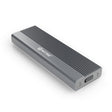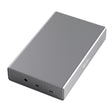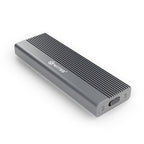



Switss® DisplayPort KVM Switch 2x2 Two computers,
one desk
One keyboard, one mouse and two monitors for both. Switching takes one press.
Swipe, drag or use the arrows for the next photo
Switss® DisplayPort KVM Switch 2x2
Dutch brand- Free shipping from €50
- 2-year warranty manufacturer's warranty
- 30 days to change your mind via our webshop
Each computer needs two DisplayPort outputs and a free USB-C port. Cables to your monitors are not included. Will it work with my computers?
Business orders Volume discount, VAT invoice, quotation
| 1 piece | €110,00€90,91 each |
|---|---|
| 2 to 9 pieces | €104,50€86,36 each, 5% off |
| 10 to 49 pieces | €99,00€81,82 each, 10% off |
| 50 to 99 pieces | €93,50€77,27 each, 15% off |
| 100 pieces or more | €88,00€72,73 each, 20% off |
- The discount is applied automatically in the cart
- VAT invoice with every order, Dutch Chamber of Commerce no. 76439534
- Same product in every box: SW-KVM-DP2x2, 2-year warranty
Sharp on two monitors
Both computers use the same two monitors. You switch with one press.

* 8K needs image compression (DSC) on graphics card and monitor, an 8K monitor and all cables with the DP8K label, up to 3 m.
1Question 1 of 3
Will it work?
Three questions, and you know whether this switch suits your computers and monitors.
3 questions to go
Choose your answers. The result appears here.


Which model suits you?
Look at the outputs on your computers.
 Recommended
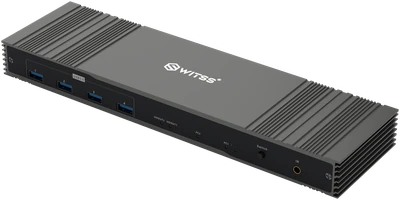
HDMI model
Two computers, each with two HDMI outputs
View this model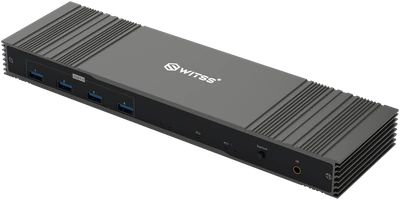 Recommended
DisplayPort model, this one
Two computers, each with two DisplayPort outputs
Go to the buy box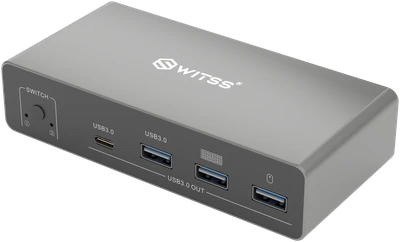 Recommended
USB-C model
A laptop with USB-C video and a PC with DisplayPort and HDMI
View this model
2Question 2 of 3
Can I get it working?
Yes, in four steps and without software.
First shut down both computers. Choose Shut down, not Sleep.
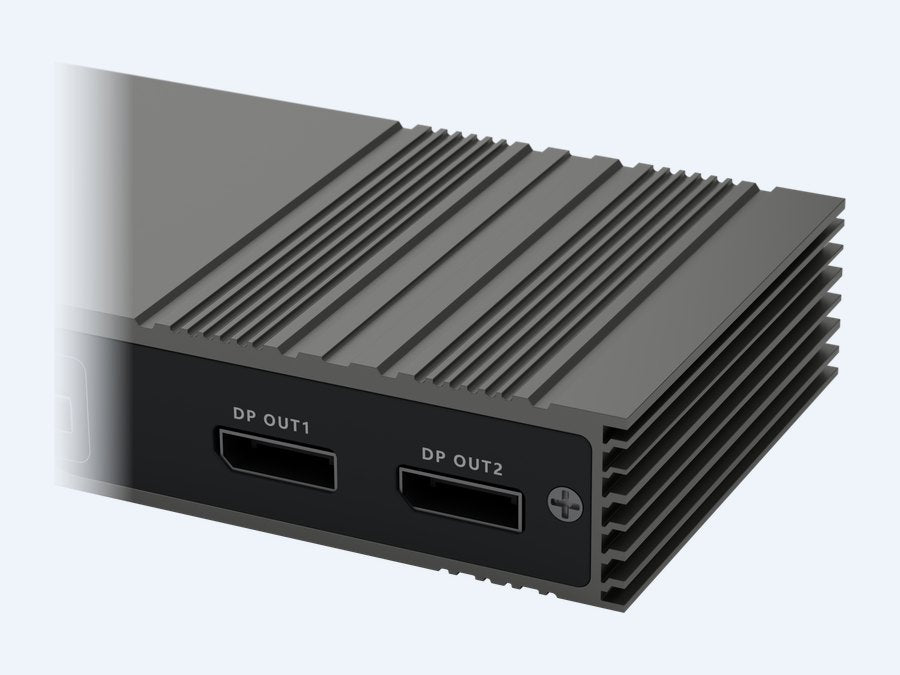 1MonitorsPlug the cables from your monitors into DP OUT1 and DP OUT2. These are the cables that are already in your monitors.
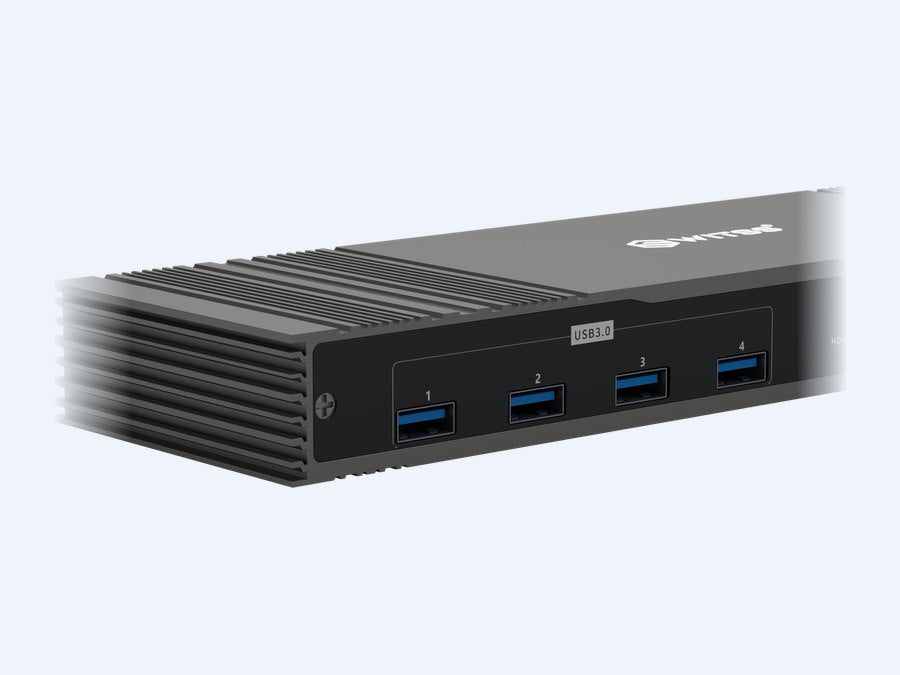 2Keyboard and mousePlug them into the USB ports on the front. Wireless with its own USB receiver? Plug the receiver into the switch.
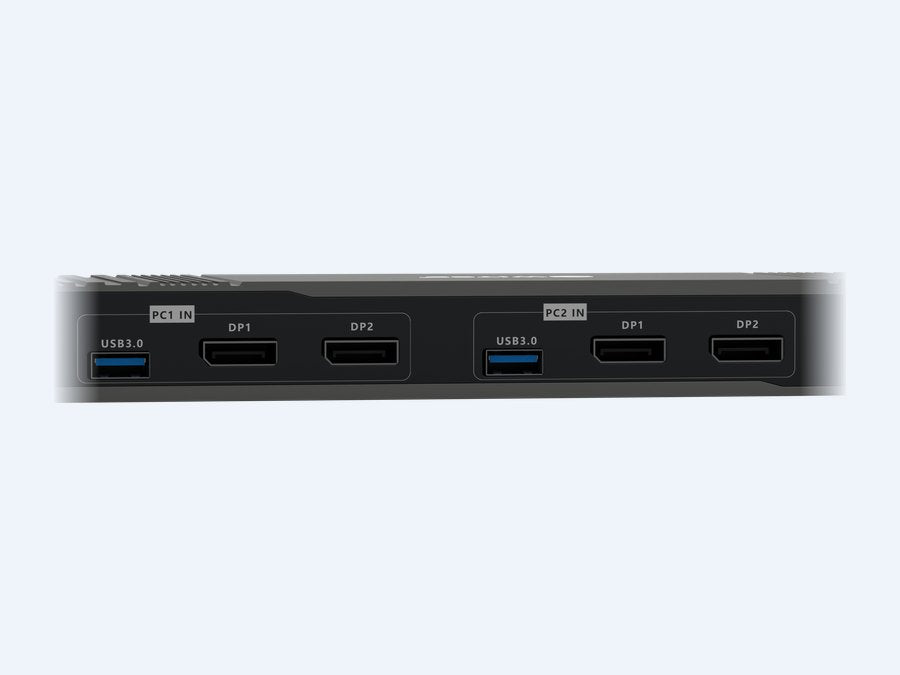 3ComputersTwo DisplayPort cables and one USB cable per computer, from the box. The USB cable goes into your computer with USB-C and into the switch with USB-A. Computer 1 goes into PC1 IN, computer 2 into PC2 IN.
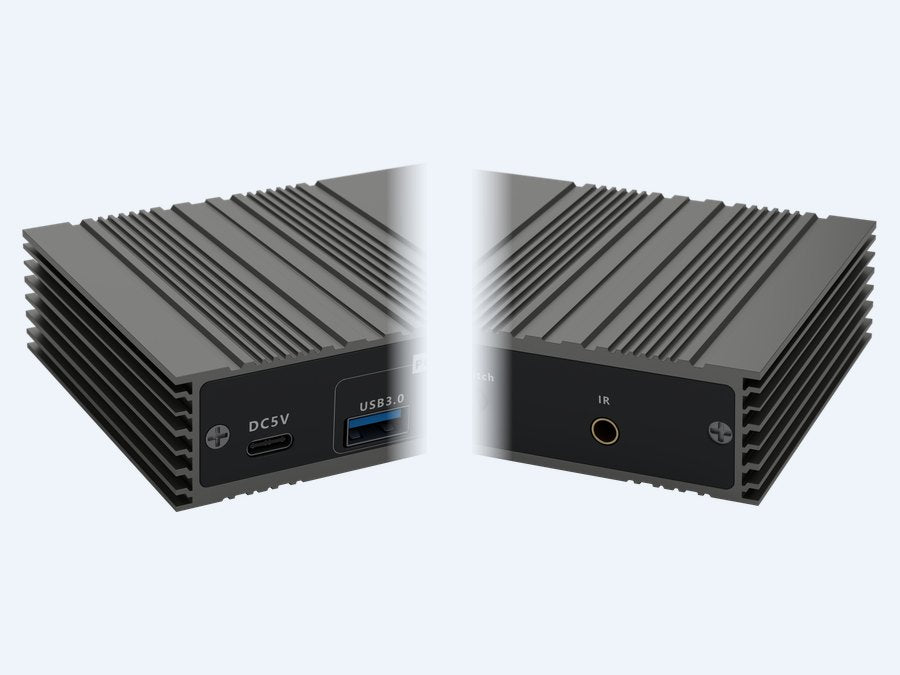 4Power and receiverPlug the adapter into DC5V at the back. The remote control receiver goes into IR at the front. Place it in view on your desk.
Then turn everything on
Turn on the monitors first, then computer 1. Do you see the desktop? Then turn on computer 2.
Which cables do you need?
You need six DisplayPort cables. Four are included, for the computer side. For your monitors, you use the cables that are already in your monitors.
Use certified DisplayPort cables, up to 5 m at 4K. For 8K, use cables with the DP8K label on the packaging, up to 3 m.
What's in the box
- Switss® KVM switch
- 4 DisplayPort cables, 1.8 m each, for the computer side
- 2 USB cables, 1.2 m each, USB-C on the computer side
- Power adapter with power cable
- Remote control
- Receiver for the remote control, with cable
- Manual
Not in the box
Computers, monitors, keyboard, mouse and the cables to your monitors.
Not working straight away? Here is what to check
- Monitor stays black? Black for a moment after switching is normal. If it stays black, turn Deep Sleep, DP Power Saving or Eco Mode off in your monitor's menu.
- Only one monitor? Use two DisplayPort cables per computer and choose Extend in the display settings. In Windows, press the Windows key and P.
- Mouse or keyboard not working? Check the USB cable to that computer. Wireless? Plug the receiver into the switch. Bluetooth won't switch over.
- Picture flickers or no 8K? Use shorter, certified DisplayPort cables that suit your resolution. Connect your computers directly, without a docking station or hub in between.
- Remote control not working? Place the receiver in view on your desk. The remote control does not work through a desk or cupboard door.
Still not working? Email or call us with your computer and monitor models. You get an answer within 24 hours.
Missing something in the box? Email us and we will sort it out.
3Question 3 of 3
How do I switch?
With one press on the button or with the remote control.
- 1Press the buttonOr use the remote control. Monitors, keyboard, mouse and the four USB ports move over.
- 2The light moves overPC1 or PC2: that is how you see which computer is active.
- 3Black for a moment, then the other pictureThat is normal and not a fault.
Good to know
Remote control
Switch from your chair. Place the receiver in view on your desk: the remote control does not work through a desk or cupboard door.
Each computer keeps its own monitor layout
Set Extend once on each computer. Each computer remembers its own monitor layout.
Bluetooth won't switch over
A Bluetooth keyboard or mouse stays paired with one computer and does not switch over. Use a wired set, or a wireless set with its own USB receiver in the switch.
Specifications and warranty
SpecificationsSW-KVM-DP2x2
| Computers | 2, each with two DisplayPort cables and one USB cable (PC1 IN and PC2 IN). Each computer needs a free USB-C port. |
|---|---|
| Monitors | 2, via DP OUT1 and DP OUT2 |
| Video | DisplayPort 1.4, up to 8K (7680 x 4320) at 60 Hz. That requires your graphics card and monitor to support image compression (DSC), with DP8K cables up to 3 m. Also 4K at 60 Hz. |
| Cable length | Up to 3 m at 8K and up to 5 m at 4K, to your computers and to your monitors. Use certified DisplayPort cables. |
| USB | 4 USB-A ports (USB 3.0) on the front, up to 5 Gbps. The four ports share one USB connection per computer. |
| Switching | Switch button on the front or the remote control with receiver |
| Lights | PC1 and PC2: which computer is active |
| Systems | Windows, macOS and Linux, no software or drivers |
| Power supply | 5 V, 1 A via DC5V (USB-C). The adapter is included. Use only this adapter. |
| Housing | Aluminium with cooling fins |
| Length | 26 cm |
| Environment | Use from −5 to 45 °C, humidity 5 to 90%, non-condensing |
| Warranty | 2 years |
| Item number | SW-KVM-DP2x2 |
| EAN | 8721008410357 |
Warranty and returns2 years
Switss® gives a 2-year manufacturer's warranty on this switch, with direct Dutch customer service. If you buy it in our webshop, you also have 30 days to change your mind.
Use only the included adapter. Damage caused by another adapter is not covered by the warranty.
Frequently asked questions
Short answers to questions about this switch.
Can I use the switch to copy files from one computer to the other?
No. The switch moves your monitors, keyboard, mouse and the four USB ports between two computers. You always work on one computer at a time.
Does my Bluetooth keyboard or mouse work through the switch?
No. Bluetooth is paired with one computer and does not switch over. Use a wired set or a wireless set with its own USB receiver. You plug that receiver into the switch.
Can I also switch with my keyboard?
No. You switch with the Switch button on the front or with the remote control.
The remote control does nothing. What now?
Place the receiver in view on your desk, with a clear line of sight from your chair. The remote control does not work through a desk or cupboard door.
My computer has only one DisplayPort output. Does that work?
Yes, with one monitor for that computer. For two monitors, each computer needs two DisplayPort outputs of its own.
My computer only has HDMI or USB-C with video. Is that possible?
From HDMI to DisplayPort you always need an active adapter. A USB-C port that outputs video can work with an adapter to DisplayPort. If you use the USB-C port for video, that computer needs another USB-C port for the USB cable. A USB-C port without video won't work. Adapters are not in the box. Does each computer have two HDMI outputs? Then the HDMI model works without an adapter.
Can I use a docking station or USB-C hub in between?
We advise connecting your computers directly. A docking station or hub in between can disrupt the picture or the detection of your monitors.
Will I get 8K?
Only if your graphics card and your monitor support image compression (DSC). You also need DP8K cables of no more than 3 m. The switch never delivers more than the weakest part.
Which DisplayPort cables do I need?
Six in total. Four are included, for the computer side. For your monitors, you use the two cables that are already in your monitors. Use certified cables, for 8K with the DP8K label, up to 3 m.
My monitor does not wake up after switching. What now?
Turn Deep Sleep, DP Power Saving or Eco Mode off in your monitor's menu.
Can I use a different adapter?
No, use only the included adapter. Damage caused by another adapter is not covered by the warranty.
My monitors go black when I switch. Is that a fault?
No. After switching, both monitors go black briefly. Then the picture from the other computer appears and the keyboard and mouse are recognised again.
My second monitor stays blank. What now?
Connect that computer with two DisplayPort cables. Then choose Extend in the display settings. In Windows, press the Windows key and P.
In which order do I turn everything on?
First shut down both computers: Shut down, not Sleep. After connecting, turn on the monitors first, then computer 1. Do you see the desktop? Then turn on computer 2.
Do I need software?
No. The switch works with Windows, macOS and Linux, without software or drivers.
Still stuck on something?
Then Matthijs or Luca will answer, within 24 hours. Email or call us, also if your question is not listed above. Ask your question